Tabple quick start in 5 minutes
A step-by-step walkthrough from creating an account to finishing your first project.
Step 1 — create an account
Sign up
Go to tabple.com/register, enter your name, email, and a password of 8 characters or more (typed again to confirm), agree to the terms of service and privacy policy, and press 'Get started'. You can also start right away, with no email, using 'Sign up with Google', 'Sign up with Apple', or 'Continue with Kakao'.
Verify your email
If you signed up with an email address, you are not logged in automatically. Click the link in the verification email (valid for 24 hours) to verify the address, then log in.
Step 2 — create your first project
Open the dashboard
The dashboard opens once you log in. If you have no project yet, press 'Create a project' in the middle; if you already have one, press 'New project' at the top right. You can also open the project switcher in the sidebar and press 'Create a project'.
Fill in the project details
Enter a project name (required), add a description of up to 200 characters if you like, pick a color, and press 'Create project'. Under 'Advanced settings' you can set the project key (up to 5 capital letters or digits).
Check the Kanban board
When the project is created, four default columns (To do / In progress / Review / Done) are generated automatically, and the 'Done' column is what counts as finished.
Step 3 — add your first task
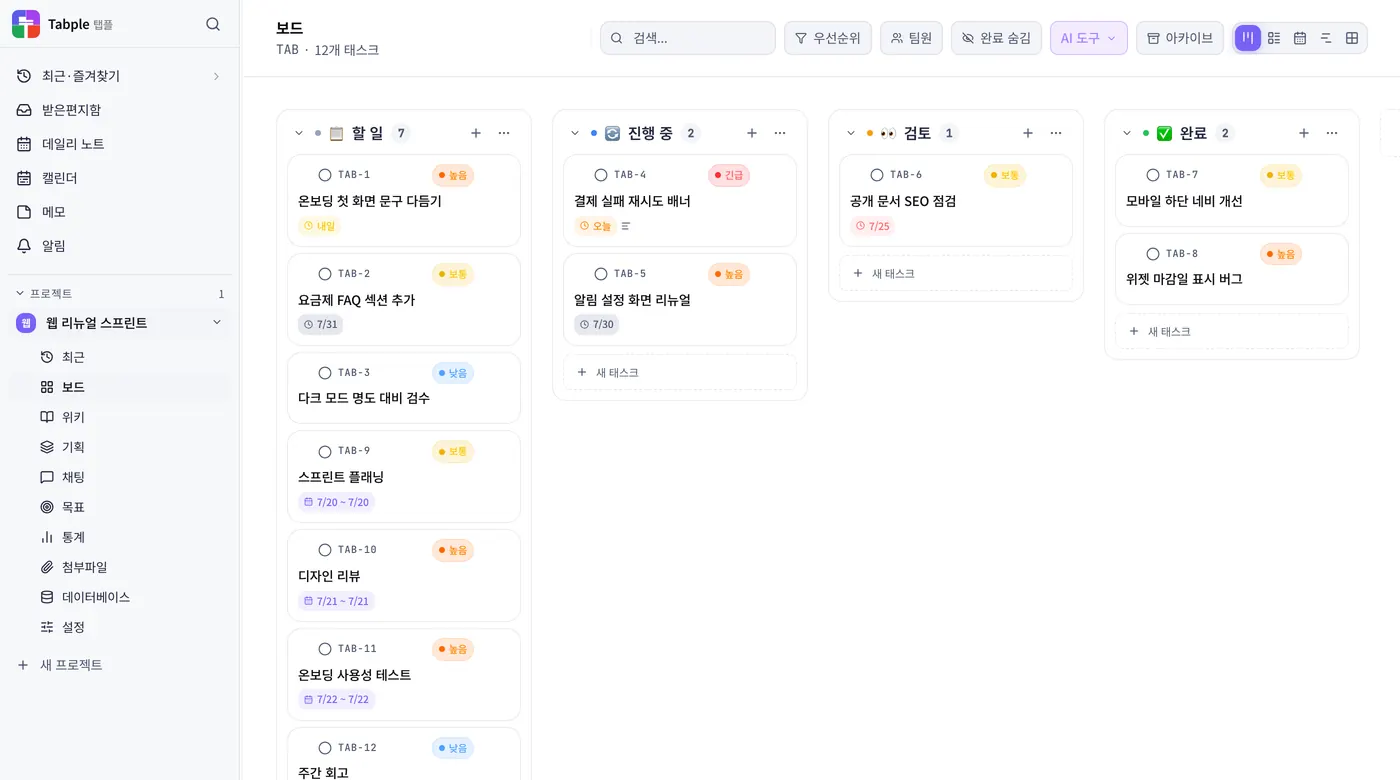
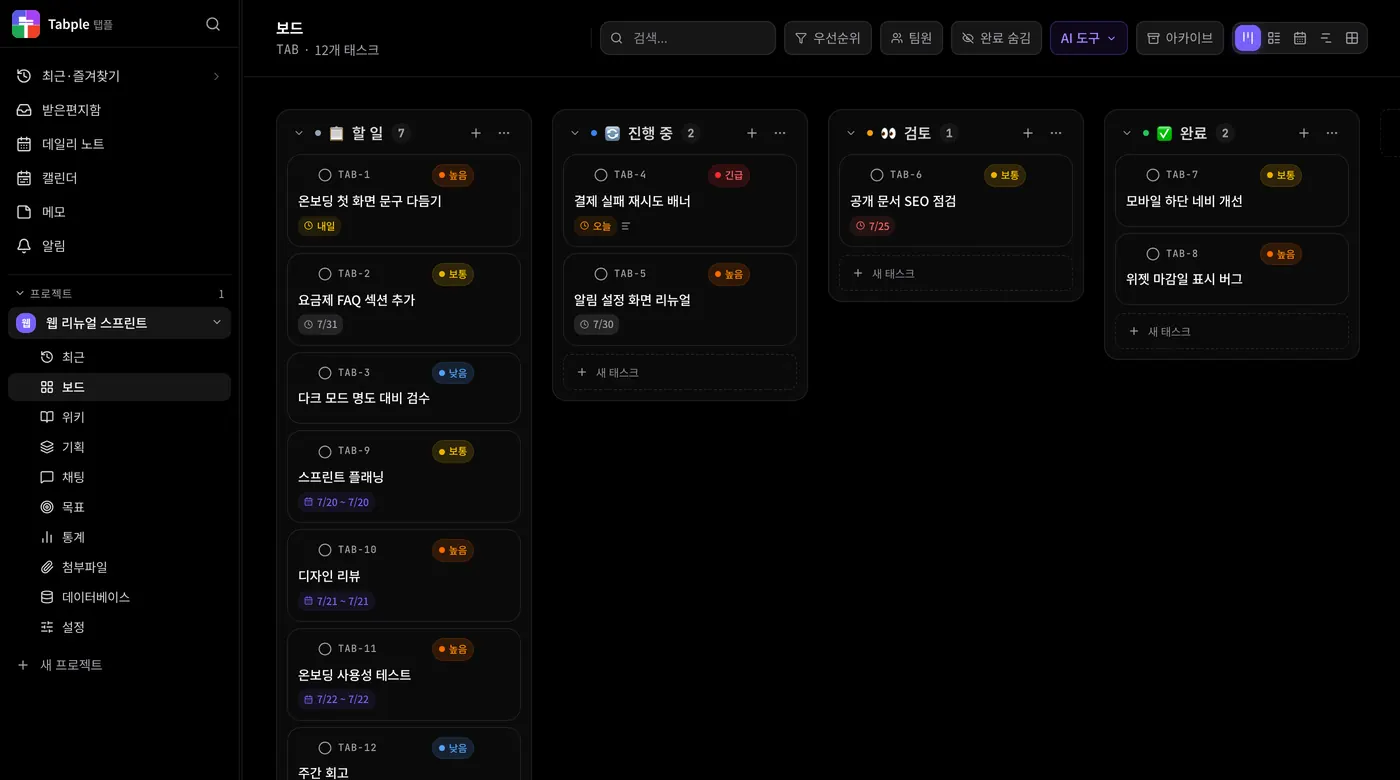
Add a task
Press 'New task' at the bottom of a column to open an input. Type a title and press Enter (or 'Add') to add it right away. Esc cancels, and a date phrase in the title such as 'review tomorrow at 3pm' is picked up as the due date (press 'Dismiss' if it is wrong).
Set the details
Click a task card to set the assignee, due date, priority, and attachments.
Assign someone
Search for and pick a project member in the assignee field of the right panel, and the newly assigned member gets a notification automatically. Assigning yourself sends no notification.
Step 4 — take a look around the sidebar
Expand the sidebar
The first time you open Tabple, the sidebar is narrow and shows only icons. Press the panel-shaped 'Expand sidebar' button at the bottom to see the menu names. The top row holds the logo (back to the dashboard), 'Recent · favorites', and search, followed by the workspace menu, the project switcher, and the current project's menu.
The sidebar menu setup on first use
The first time you log in, a 'Sidebar menu settings' window appears. Press 'Get started' and pick 'Turn on every menu (default)', 'Essentials only (simple to-do)', or 'Set it up myself', or close it with 'Later'. You can change it any time under Settings → General → 'Customize sidebar menu'.