Wiki & team documents
Build team knowledge systematically in a Notion-style rich editor.
Editor basics
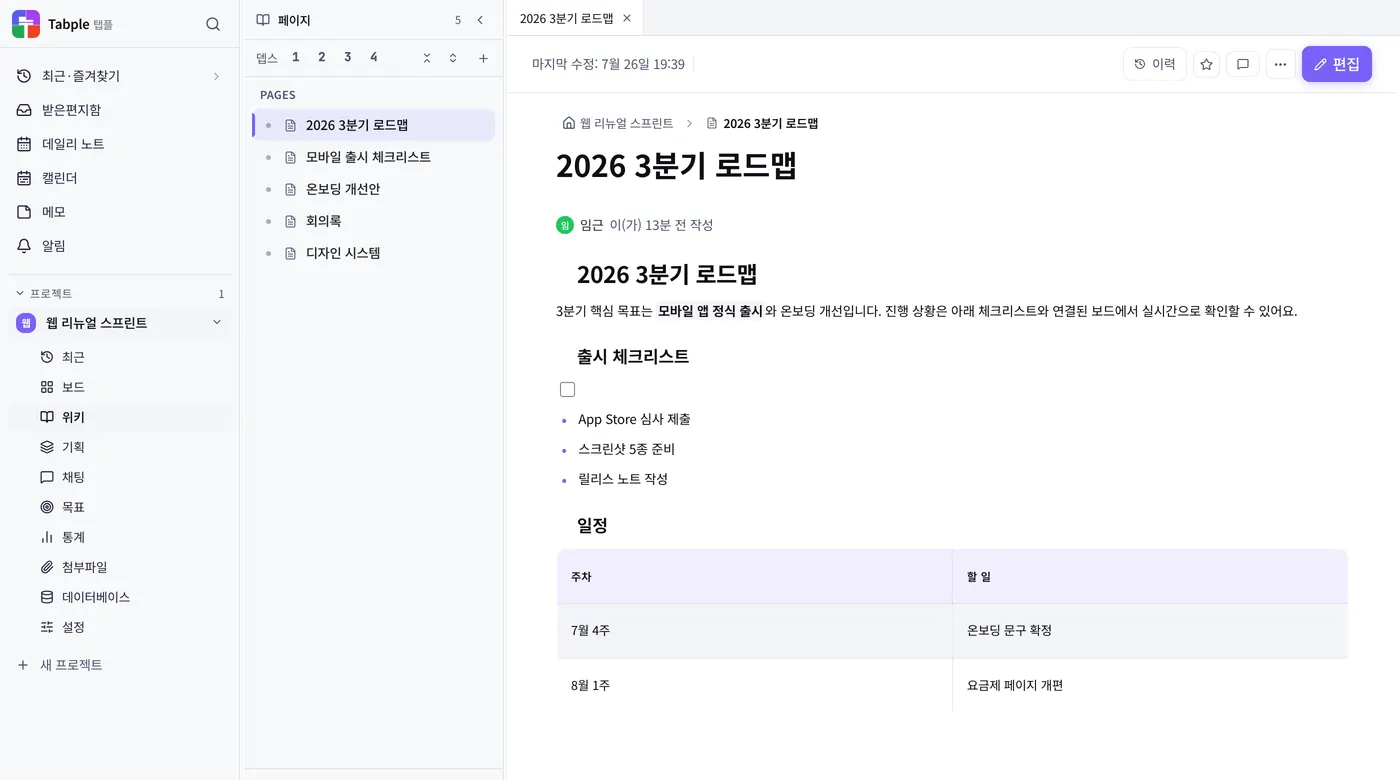
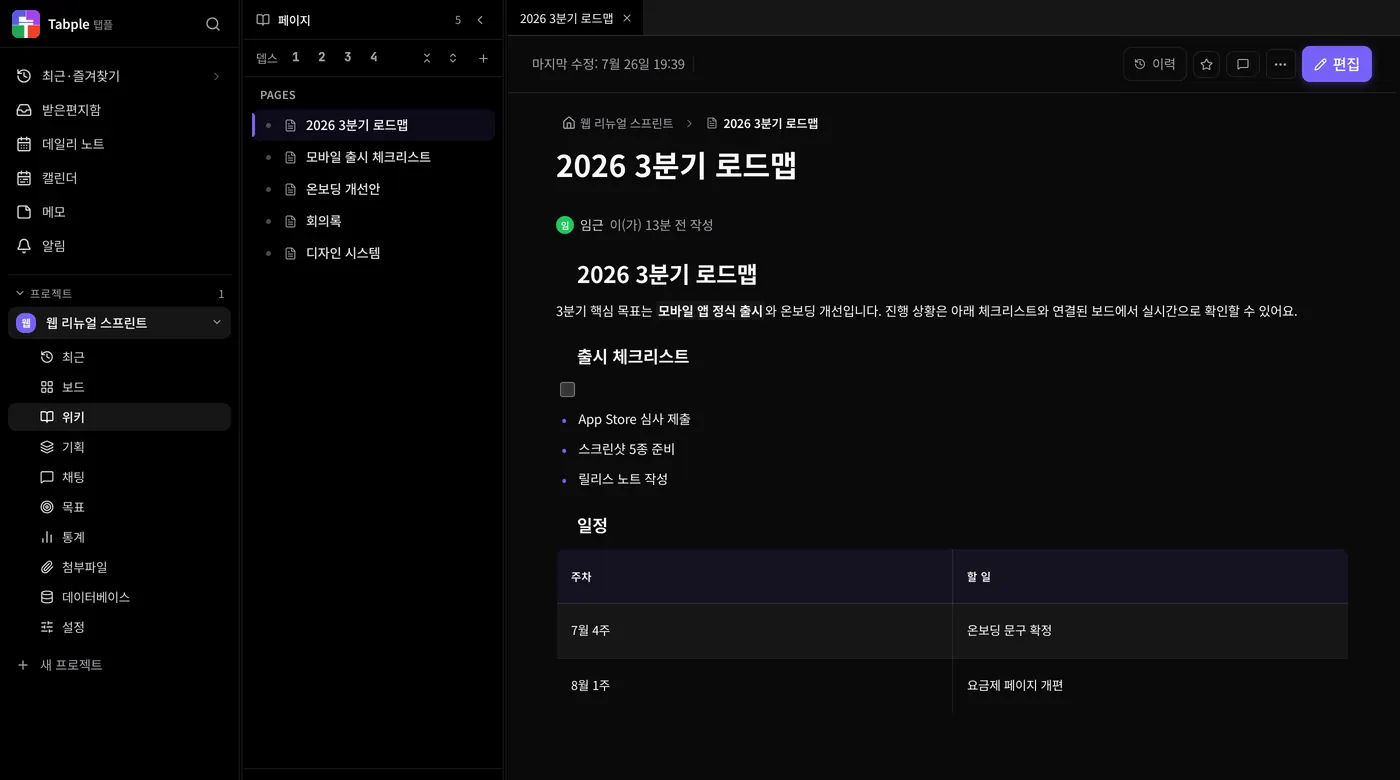
Slash commands
Type '/' in the editor to open the block menu. Insert headings, tables, code blocks, images, and many other blocks.
Insert multimedia
Drag and drop or paste image files, or upload them from the image button in the toolbar. The '/image' slash command is for entering an image address (URL). Links, Figma iframes, and Mermaid diagrams are supported too.
Inline comments
Select text by dragging, then click the comment icon in the bubble menu to comment on that sentence.
View settings — width and text size
In the page's ⋯ menu at the top right, 'View settings' lets you choose, for each page, the font, body text size (Small · Default · Large), width (Narrow · General · Wide · All), and whether to show the table of contents. The settings are saved on the page, so teammates viewing it see it the same way.
Duplicate and export
The same ⋯ menu lets you copy the link, duplicate the page, or duplicate it to another project, and choose 'Export .md', '.zip with subpages', or 'Save as PDF'. 'Save as PDF' appears on paid plans (Storage 20GB, Storage 100GB, and Lifetime) and saves through the browser's print dialog.
Page structure & backlinks
Create tree items
From the + menu in the left tree you can create a regular page, an Excalidraw drawing, a folder, a divider, or a labeled divider. Use the + menu on a page or folder to add child items.
Subpages and folders
Drag pages in the tree to build a hierarchy. Drop on the middle of a row to make the page a child of it, or on the top or bottom edge to place it before or after; a line shows where it will land. Hover over a collapsed page for a moment and it expands. The wiki tree goes up to 4 levels deep. A folder is an organizing container that only expands and collapses in the tree, without opening a body.
Page mentions
Type [[ and search for a page name to generate an inline link automatically. A two-way backlink is created for you. (@ is only for mentioning teammates.)
Tags
Add tags at the top of a page to group related documents together.
Move with the keyboard or a menu
With a page focused in the tree, press ⌥↑ · ⌥↓ (Alt+↑ · Alt+↓ on Windows) to move it up or down within the same level. On Mac, ⌥→ nests it under the item directly above and ⌥← moves it out one level. The same moves are in each row's ⋯ menu; on Windows, Alt+←/→ is the browser's back/forward, so 'Move into the item above' and 'Move out one level' are menu-only there. Divider rows have the same items in their ⋯ menu.
Locking a page
Project owners and admins can lock a page from 'Page locked' in the ⋯ menu at the top right of the page; other members are notified when you lock it. A locked page is shown as 'Read only' to members and viewers, and its content can't be edited. In the tree, members can still reorder it within the same level but can't move it under a different parent, and they can't delete a locked page or a branch that contains one (the Delete item is disabled and shows the reason).
All content — browse at a glance
Where to find it
'All content' at the top of the wiki sidebar, or the 'Content' area on the home screen. On mobile, open it from the sheet at the bottom of the wiki.
Search and sort
The search box only matches titles. To search inside documents, use ⌘K full search instead. You can sort by recently edited, date created, or title.
Filter and switch views
Narrow things down to All · Recent (documents you have opened) · Starred. The button on the right switches between cards and a list, where the author and project line up in columns so they are easy to compare.
Tasks when there are no documents
In a project that does not use the wiki yet, tasks are shown instead of documents. Tasks have a check mark and a number such as PROJ-12 to set them apart, and clicking one opens it right away.
The wiki tree walks down through folders, so it is hard to see everything you have at a glance. Open All content at the top of the wiki sidebar to skim your documents as cards or a list and narrow them down by title. The Content area on the home screen is the same view, except it gathers documents from every project you belong to. On Free you can create up to 100 wiki pages across the projects you own; the paid plans (Storage 20GB, Storage 100GB, and Lifetime) have no limit. Copies and imports count. Existing pages remain readable, editable and exportable at the limit.
Inline comments & threads
Comment on a sentence
Select text by dragging and click the comment icon in the bubble menu that appears to comment on that sentence. An anchor point is shown in the right margin of the sentence.
Thread replies
Replies in the comment panel are grouped into a thread, with mentions and emoji reactions supported.
Resolve
Once a discussion is over, mark the comment Resolve to hide it. Resolved comments can be brought back through the filter.
Snapshots (version history)
While a page is being edited, a snapshot is saved automatically once 15 minutes have passed since the last one or the text has changed by 300 characters or more, and the latest 50 are kept for each page. Open 'Version history' from the page's ⋯ menu to preview past versions and choose 'Restore this version'. Turn on 'Compare' and pick two versions to see how the text changed. Deleting a page also deletes its snapshots, so a deleted page can't be recovered.
AI content generation
You can polish selected text with AI in the editor, or generate a new section automatically with the '/ai' command. AI features are available on the Storage 100GB (Pro) plan (and on Lifetime plans that already subscribe to the discontinued AI add-on, until it expires).