Board & task management
Manage tasks completely across three views: Kanban, list, and timeline.
Switching views
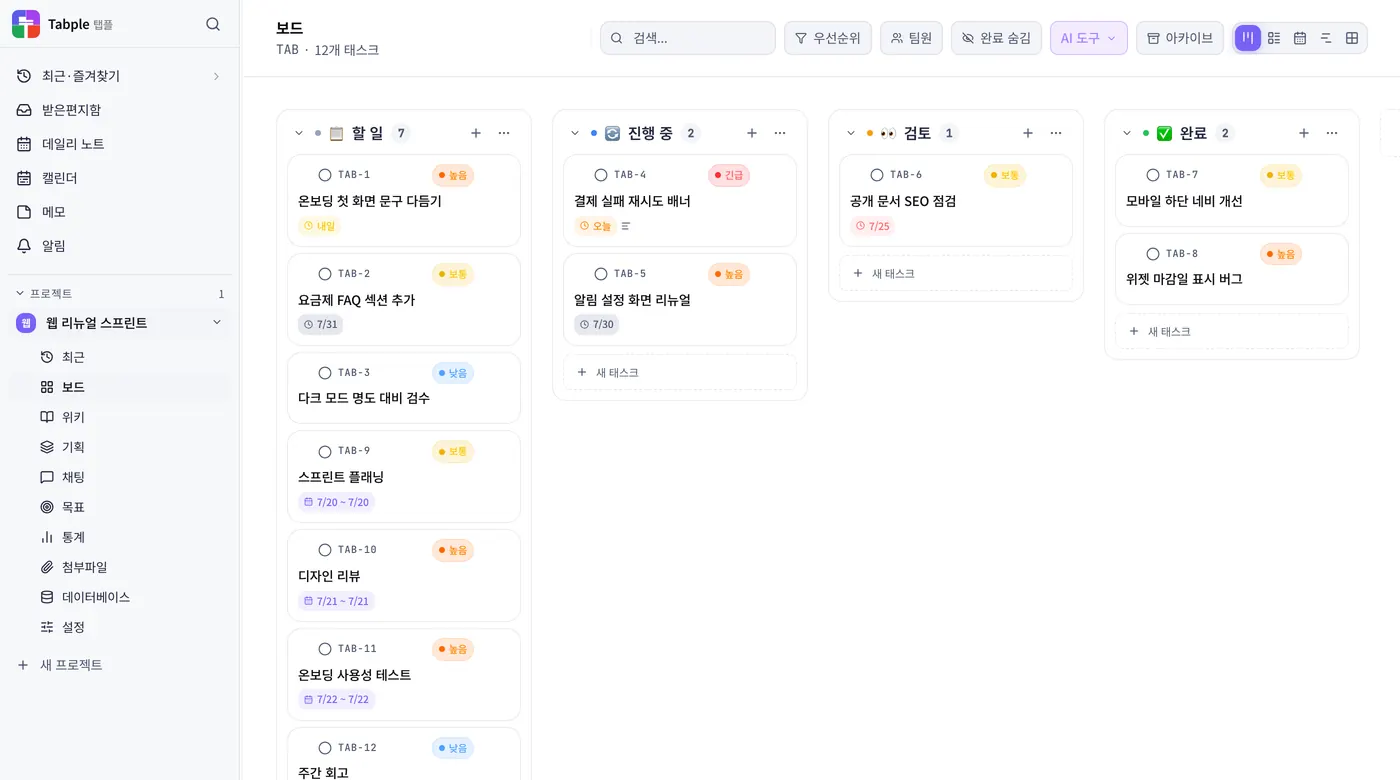
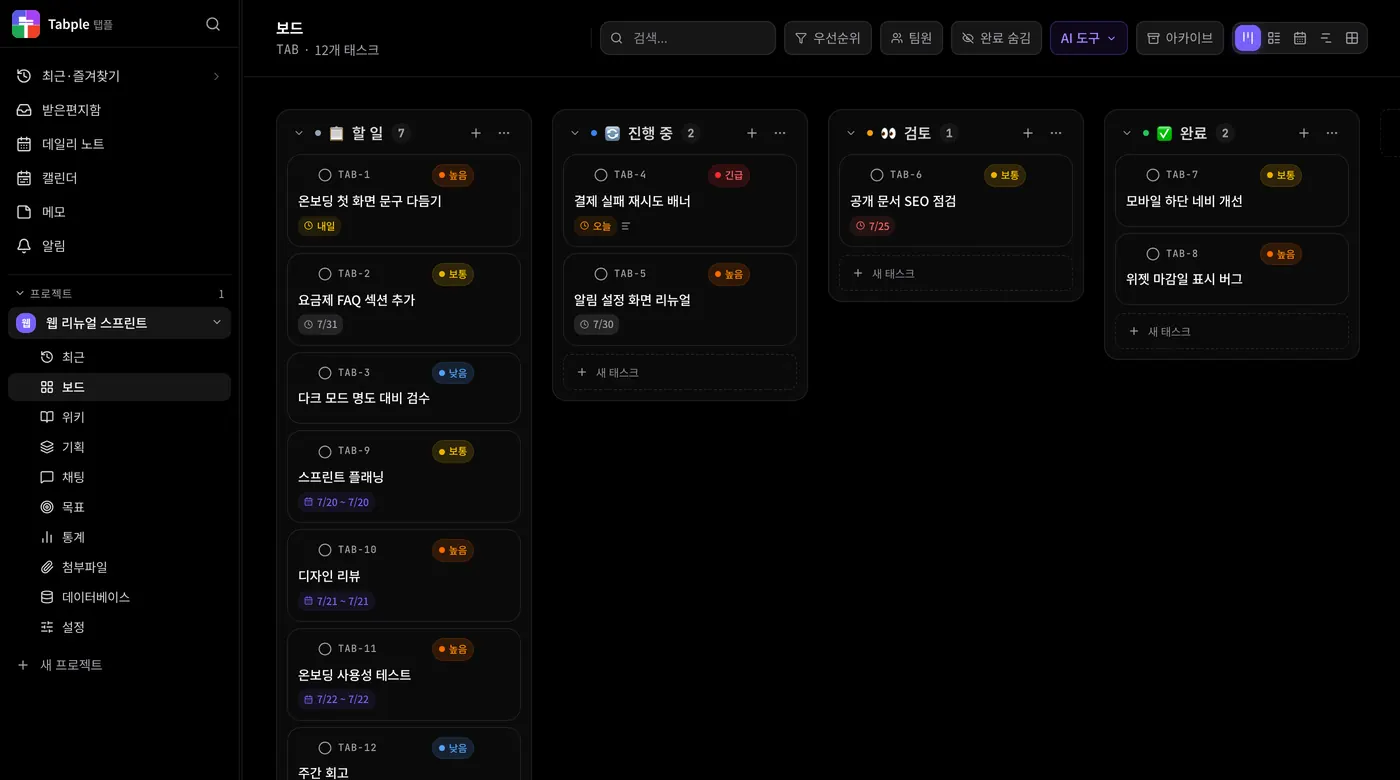
Kanban view
Shows tasks as cards grouped by column. Drag and drop moves them between columns, and with the pointer over a card you can press C (complete), X (select), Enter (open), or A (archive). On narrow screens the list view opens instead of Kanban.
List view
Lists tasks as a table. Sorting and filtering by due date or priority is quick.
Timeline view
Shows the schedule as a Gantt chart based on start and due dates. Tasks with a date range appear as bars, tasks with only one date as dots, and a line marks today (the range runs two months either side of today). Dependencies between tasks are drawn as arrows; add them from the Dependencies section of the task detail. Click a bar to open the task.
Calendar view
Places tasks on a monthly calendar by start and due date, with date-range tasks shown as connected bars. Drag a chip to another day to move its schedule (a task with a range shifts by the same number of days), and use the + button that appears when you hover over a day to add a task on that day. Drag across several days to open a panel that summarizes the tasks in that range and lets you add more.
Eisenhower view
Splits tasks into four quadrants by priority — Do now (Urgent), Schedule (High), Delegate (Medium), and Later (Low or not set). Drag a card to another quadrant to give it that quadrant's priority, and use Add under a quadrant to create a task with a title, a due date, and an assignee right there.
Board display and grouping
Pick what to group by
Group by takes one of Original columns, Status, Priority, Assignee, or Label. Original columns is the ordinary Kanban; anything else turns the board into a list of groups for that property. Click a group heading to collapse or expand it.
Add a second level with subgroups
Subgroup by stays disabled while Group by is set to Original columns. Change Group by to something else, such as Assignee, and Subgroup by becomes selectable, minus whatever the first level already uses. Assignee over Status gives a collapsible row per person, split into one cell per status. Choose None to turn it off.
Card density and properties
Card density switches the card height between comfortable and compact, and Column width sets how wide each column is: narrow, default, or wide. The Card properties checkboxes hide the description, labels, priority, due date, and assignee from the face of the card. Hiding a property keeps the value — it is still there in the task detail.
Move cards between groups
Drag the six-dot handle at the top right of a card into another group and the task really takes on that group's property. Drop it in an assignee group and the assignee changes; drop it in a priority group and the priority changes. Jumping to a different cell in a different row changes both at once, and any other assignees or labels the task already had are kept.
Move with the keyboard
Focus the handle, press Space to pick the card up, choose a destination group with the arrow keys, and press Space again to drop it. Escape cancels. Saving and the result are announced to screen readers.
The View settings button in the Kanban header decides what the cards are grouped by and what each card shows. The choice is saved per project on this device only, so nothing changes for your teammates. With read-only (viewer) access the board can be read but the move handle never appears.
Task details
- Assignees — more than one can be assigned
- Priority — Urgent / High / Medium / Low (shown as a colored dot)
- Schedule and properties — date range and time, repeat, story points, labels, location, and a link
- Subtasks — break work down as a checklist
- Attachments — upload multiple images, PDFs, videos, and more
- Comments & mentions — tag a teammate with @name to send a notification (Viewers can only read)
- Dependencies — mark how a task relates to another one (Blocks, Blocked by, or Related); they show as arrows in the timeline view
- Custom fields — Owners and Admins create text, number, date, select, checkbox, and URL fields under Custom fields in project settings, and they appear in every task's detail
- Time tracking — in the Work log tab of the activity area, run a timer or enter time by hand
- Watching — click the bell in the detail header to get notified about status changes and comments
- Links — connect a task to wiki pages and to feature specs from planning
- More menu — save as a template (reuse it from the template button at the bottom of a column), duplicate the task, move it to another project (when you have access), or delete it
Managing columns
Add and rename columns
Add a column with Add column at the far right of the board, and rename one by choosing Rename in the ⋯ menu of its header. Adding, renaming, reordering, archiving, and deleting columns are limited to Owners and Admins — other roles see no buttons for them and cannot drag a column.
Column order and collapsing
Drag a column header to change the order; teammates see the same order. Choose Collapse column in the header's ⋯ menu to fold a column into a narrow strip — the folded state is saved on this device only. A column's color is picked automatically when it is created.
Done columns
Choose Set as Done column in a column's ⋯ menu and cards moved into that column become done. Cards already in the column are marked done too, and strike-through, the Hide done filter, the calendar, and analytics all follow the same rule.
Column move automation
In Automation under project settings, choose Add rule, pick the trigger column, and set the actions (move to column, change priority, set assignee, add label). Every time a card moves into that column, the rule runs automatically. Owners and Admins create rules; members can view the list.
Archive
Tasks that are finished and no longer need to be seen can be filed away with Archive in the more (⋯) menu on the right of the card. You can also hover over a card and press A, and an Undo button appears for a moment afterwards. In the board header's more (⋯) menu, Archive N done tasks files everything that is finished in one pass, and View archive lets you search, restore, or permanently delete archived tasks and columns (only recent items are listed). Archive column in a column's menu archives the tasks inside it too and restores them from the same screen. Archived tasks drop out of the task counts on the board and in analytics, while the record of past completions (the weekly completion trend) stays.
Search and quick launch
Global search
⌘+KSearch tasks, documents, and memos together from any page.
Desktop quick launch
⌘+Shift+KOn the desktop app you can bring up the Tabple window while working in another app.
Search and filters on the board
Type in the search box in the board header to narrow it to matching tasks. Open Filter to pick a priority, a label, and members (including tasks with no assignee), use Hide done to put finished tasks out of sight, and clear everything at once with Reset all.
Sprints
Create a sprint
Click Add sprint, enter a name (required), an optional goal, and a start and end date, then click Create. A new sprint starts as Planned.
Assign tasks
Tasks not yet assigned to a sprint collect in the Backlog on the right (below on narrow screens). Drag the handle at the left of a task onto a sprint to assign it, onto another sprint to move it, or back onto the backlog to take it out. Click a task to open its detail.
Start and finish
Click Start on a sprint row to make it In progress, and Done to finish it. If another sprint is already in progress you are asked first whether to run both. Each row shows how many tasks are finished and the percentage, and the header shows the average velocity of the last three completed sprints in points per sprint.
A sprint groups the tasks you plan to do within a fixed period. Open it from the Sprints tab next to Board in the Work row above the board (you can hide it under Menu visibility in project settings). Viewers can read but not change anything.
CSV import and export
Import tasks from CSV
Open Import tasks from CSV in the ⋯ menu of the board header and upload a .csv exported from Trello, Asana, Jira, or similar (UTF-8, up to 5 MB and 5,000 rows at a time). A preview of the first 5 rows helps you map CSV columns to task fields — the title is required, and statuses and labels that do not exist yet are created for you. When it finishes you see how many rows were imported and skipped.
Export to CSV
Under Project settings > General > Data management, Export tasks as CSV downloads every task on the board as a CSV that opens in Excel. General settings are visible to Owners and Admins only.